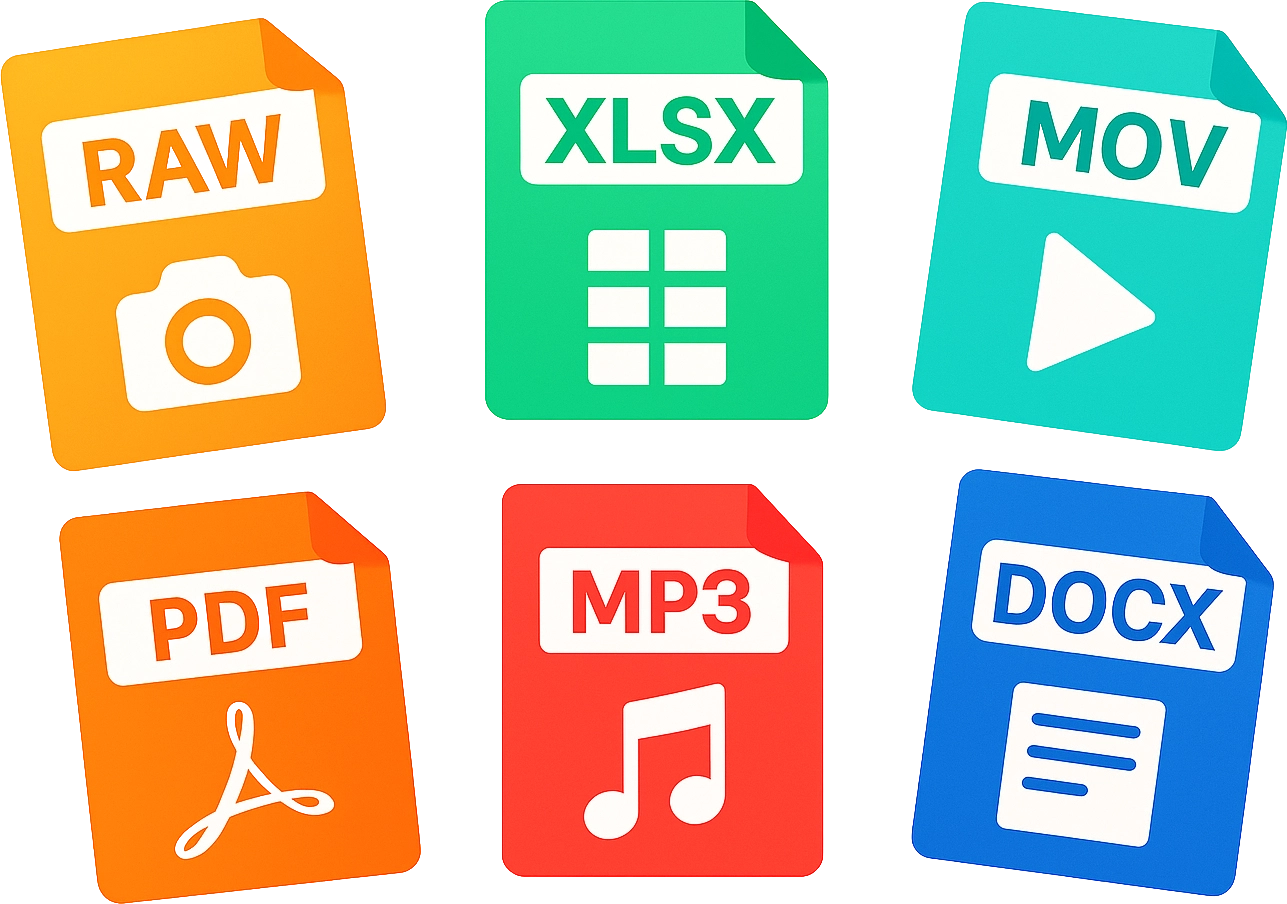

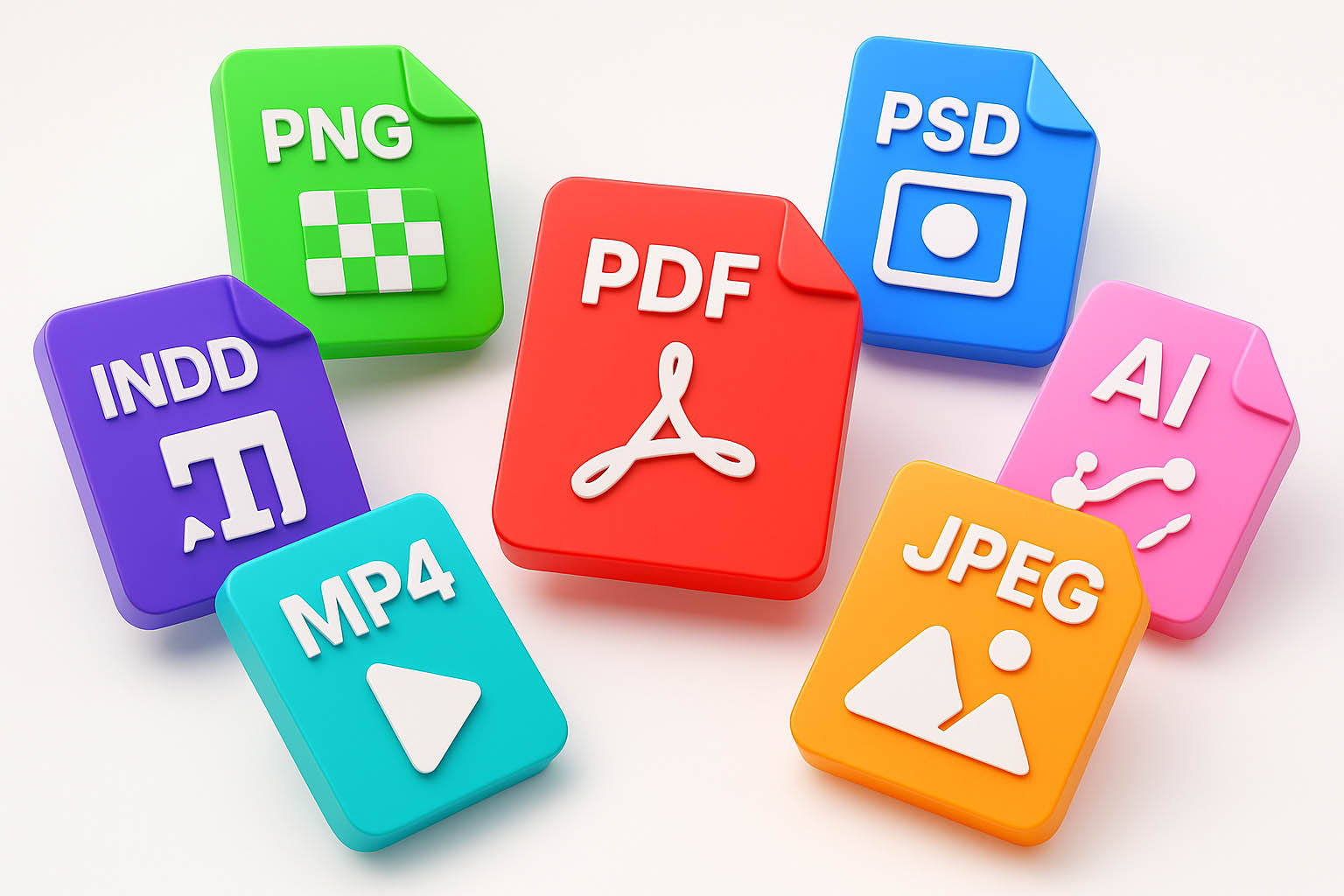
Are you confused about the many different file types out there, what they mean and what they can work with?
This easy-to-understand guide will help you learn about some of these formats that you might encounter, their pros and cons, and what can open or edit them.
Best for: Photos, website graphics, social media images and everyday visuals.
Pros: Small file sizes, loads quickly, widely supported, ideal for photography.
Cons: Slight quality loss due to compression, not ideal for sharp graphics or logos.
Opens in: Windows Photos, macOS Preview, Microsoft Word, PowerPoint, Publisher, Google Docs, Google Slides, Adobe Photoshop, Illustrator, all browsers and mobile devices.

Best for: Logos, icons, transparent graphics, illustrations and UI elements.
Pros: Supports transparent backgrounds, crisp high-quality images, keeps edges sharp.
Cons: Larger file sizes than JPEG, not ideal for very large print items.
Opens in: Windows Photos, macOS Preview, Microsoft Word, PowerPoint, Publisher, Google Docs & Slides, Adobe Photoshop, Illustrator, all browsers and mobile devices.
Best for: Logos, icons, web graphics, UI elements and artwork that must scale cleanly.
Pros: Infinitely scalable with no pixelation, extremely small file sizes, great for websites.
Cons: Not suitable for photos, limited editing in everyday apps like Word.
Opens in: All modern browsers, Adobe Illustrator, Figma, Sketch, XD, and view-only support in Microsoft Office apps.
Best for: Simple animations, lightweight banners, icons and short looping images.
Pros: Supports basic animation, widely compatible, easy to share.
Cons: Limited colours, outdated for professional design, low photo quality.
Opens in: Windows Photos, macOS Preview, Microsoft Word, PowerPoint, all browsers, Photoshop and mobile devices.
Best for: Website imagery that needs to look great and load extremely fast.
Pros: Smaller file size than JPEG or PNG, supports transparency, great quality-to-size balance.
Cons: Not fully supported in some older programs, may require converting for print.
Opens in: Most modern browsers, Windows Photos (new versions), Photoshop (updated versions or plugins), and limited support in Microsoft Office.
Best for: High-end photography, print publishing, archival-quality images.
Pros: Lossless and extremely high quality, great for professional prints.
Cons: Very large file sizes, not always supported in everyday apps.
Opens in: Adobe Photoshop, macOS Preview, some support in Windows Photos, not widely supported in Microsoft Word or PowerPoint.
Best for: Logos, vector illustrations, icons, branding assets, typography and any artwork that must scale without losing quality.
Pros: Fully editable, layered, precise vector control, industry standard for branding and illustration, perfect for exporting to other formats like SVG and PDF.
Cons: Requires Adobe Illustrator, not universally supported in everyday office software, cannot contain full photo-editing features like PSD.
Opens in: Adobe Illustrator (full support), Figma (limited import), Affinity Designer (partial), some online viewers. Cannot be opened in Microsoft Word or PowerPoint.
Best for: Photo editing, digital painting, complex graphics, layered compositions, mockups, image retouching and web layouts.
Pros: Supports layers, masks, smart objects, effects and high-end editing tools. Widely supported across creative software.
Cons: Large file sizes, requires Photoshop for full functionality, not suitable for sending to print unless exported.
Opens in: Adobe Photoshop (full), Affinity Photo, Procreate (partial), Photopea (browser-based), macOS Preview (flattened view), Microsoft Office (flattened only).

Best for: Print-ready documents, brochures, posters, reports, invoices, vector artwork, forms and universal file sharing.
Pros: Universal format, preserves layout and fonts, keeps vectors editable, ideal for commercial printing, supports images, illustrations and typography in one file.
Cons: Editing requires compatible apps like Illustrator, Acrobat Pro or InDesign; not designed for heavy image manipulation.
Opens in: Adobe Acrobat/Reader, Adobe Illustrator, InDesign, macOS Preview, Microsoft Word (imports), browsers, most print company systems.

Best for: Books, magazines, multi-page documents, menus, catalogues, annual reports and structured layouts.
Pros: Built for multi-page design, master pages, precise typography, excellent print tools, integrates with Photoshop and Illustrator.
Cons: Requires Adobe InDesign, not ideal for single graphics, requires packaging files for printers.
Opens in: Adobe InDesign (full support), InCopy, browsers with plugins (limited). Cannot open in Word, PowerPoint or basic image apps.
Best for: App and website UI/UX design, click-through prototypes, wireframes and interactive layouts.
Pros: Interactive prototyping, web-friendly exports, lightweight files.
Cons: Not suitable for print or high-detail artwork, Adobe has discontinued active development.
Opens in: Adobe XD, some Figma importers, online preview tools.
Best for: Logos, signage, large print items, vinyl graphics and legacy print workflows.
Pros: Universal format, preserves layout and fonts, keeps vectors editable, ideal for commercial printing, supports images, illustrations and typography in one file.
Cons: Outdated for modern workflows, limited support for transparency and effects, less flexible than AI, PDF or SVG.
Opens in: Adobe Illustrator, CorelDRAW, Affinity Designer, some printing and cutting software. Not supported in Microsoft Office or most non-design apps.

Best for: Web videos, social media posts, YouTube uploads, product demos and anything that needs to play smoothly across all devices.
Pros: Highly compressed for small file sizes, loads quickly online, excellent compatibility across computers, phones and browsers.
Cons: Some quality loss due to compression, not ideal for high-end professional editing where raw quality is needed.
Opens in: Windows Media Player, macOS QuickTime, Microsoft PowerPoint, browsers, iPhone and Android devices, VLC, Adobe Premiere Pro, Final Cut Pro, DaVinci Resolve.

Best for: High-quality video editing, projects filmed on iPhones, promotional videos, creative content that needs higher fidelity.
Pros: Supports high-quality codecs, great for post-production work, preserves detail better than MP4, native to Apple devices.
Cons: Larger file sizes, not as widely compatible on older Windows systems without additional software.
Opens in: QuickTime, Windows Media Player (with codecs), Premiere Pro, Final Cut Pro, DaVinci Resolve, VLC, PowerPoint (newer versions).
Best for: Older Windows-based video workflows, raw output from certain cameras and legacy editing systems.
Pros: Can contain very high-quality video with minimal compression, widely used in professional and archival environments.
Cons: Huge file sizes, less efficient than modern formats, limited support on macOS without converters.
Opens in: Windows Media Player, VLC, Premiere Pro, DaVinci Resolve. Limited support in QuickTime and Office apps.
Best for: Windows environments, corporate presentations, older systems or when very small file sizes are required.
Pros: Highly compressed, extremely small file sizes, integrates well with Microsoft products.
Cons: Lower quality, not widely supported on Apple devices without converters, outdated for modern video use.
Opens in: Windows Media Player, PowerPoint. Not natively supported on macOS.

Best for: High-quality media, movies, large video libraries and files that need multiple audio tracks or subtitles.
Pros: Supports very high-quality video, multiple audio tracks, subtitles and metadata in one file.
Cons: Not as universally supported, too complex for simple business use, often requires VLC or specific players.
Opens in: VLC, QuickTime (with plugins), Premiere Pro (updated versions), some browsers with support.
Best for: Website videos, animations on landing pages, lightweight visual content for modern browsers.
Pros: Very small file sizes for web use, designed for HTML5, smooth playback online.
Cons: Limited support outside browsers, not suitable for high-end editing or print-to-video workflows.
Opens in: Modern browsers, VLC (with codecs), YouTube supports it. Limited support in everyday office apps.
Best for: Professional editing, TV/film production, brand adverts, commercial-grade video content.
Pros: Very high quality, fast to edit, widely used in professional environments, maintains detail through multiple editing passes.
Cons: Large file sizes, mainly an editing format (not for final delivery unless broadcasting).
Opens in: Final Cut Pro (native), Premiere Pro, DaVinci Resolve, QuickTime, some Windows workflows with codec support.
Best for: Cinematic production, high-budget content, professional colour grading, high dynamic range capture.
Pros: Maximum quality, greatest flexibility for colour and exposure adjustments.
Cons: Extremely large files, requires specialised software and powerful hardware, not for general use.
Opens in: DaVinci Resolve, Adobe Premiere (for certain formats), Final Cut (depending on camera type), manufacturer-specific software.
Best for: Video editing in Adobe Premiere Pro, including timelines, cuts, transitions, effects, titles and complete editing workflows.
What it actually contains:
A Premiere Pro project file does not store the video itself. Instead, it stores the structure of your edit: the timeline, where clips are placed, which effects are applied and links to the original video, audio and graphics on your computer.
Pros: Very small file size, fully editable, remembers your entire editing layout, reconnects to media if files are moved and integrates seamlessly with After Effects, Audition and Photoshop.
Cons: Cannot be played like a video, requires Premiere Pro to open, depends on the original media files and can break if media is renamed, moved or deleted.
Opens in: Adobe Premiere Pro (full support), After Effects through Dynamic Link features and DaVinci Resolve by exporting XML from Premiere. Everyday apps like Word or PowerPoint cannot open these files.
Best for: Music, podcasts, voiceovers and general audio used on websites, videos and social media.
Pros: Small file sizes, loads quickly, extremely widely supported and perfect for everyday listening or embedding online.
Cons: Compressed format, so the sound quality is slightly reduced compared to uncompressed audio.
Opens in: Windows Media Player, macOS Music/QuickTime, VLC, Adobe Premiere Pro, DaVinci Resolve, Audition, mobile devices, Microsoft Office apps and almost all web browsers.
Best for: High-quality audio, professional recording, music production, voiceovers, sound effects and anything that needs as much clarity as possible.
Pros: Uncompressed, full-quality sound, perfect for editing and ideal for professional post-production.
Cons: Much larger file sizes than MP3, not ideal for sending over email without compression.
Opens in: Adobe Audition, Premiere Pro, Final Cut, DaVinci Resolve, Windows Media Player, macOS QuickTime, VLC and most office apps for playback.
Best for: High-quality audio on Apple devices, music production and recording sessions in studios.
Pros: Uncompressed format similar to WAV, excellent quality, widely used in music environments.
Cons: Large file sizes, slightly less common on Windows systems.
Opens in: macOS Music/QuickTime, Adobe Audition, Premiere Pro, DaVinci Resolve, Logic Pro, GarageBand and VLC.
Best for: Music streaming, mobile audio, YouTube, Apple Music and compressed audio with better quality at smaller sizes.
Pros: Better sound quality than MP3 at the same file size, great for online streaming.
Cons: Not as universally supported for editing workflows, sometimes needs converting to WAV for professional use.
Opens in: iPhones/iPads, macOS Music, VLC, browsers, Premiere Pro and most mobile/streaming platforms.
Best for: Voice recordings, podcasts, iPhone voice memos and music downloaded from Apple services.
Pros: Good quality with small file sizes, often used for spoken audio, works well on Apple devices.
Cons: Not supported on Windows systems without conversion.
Opens in: QuickTime, iPhones and iPads, VLC, Adobe Premiere Pro and DaVinci Resolve.
Best for: High-fidelity audio libraries, music archiving and users who want lossless quality but reduced file sizes compared to WAV.
Pros: Lossless compression, excellent sound quality, ideal for audio purists.
Cons: Not typically used in video workflows, limited support in mainstream office software.
Opens in: VLC, limited music players, Adobe Audition, DaVinci Resolve (with support), and various audio library apps.
Best for: Game audio, interactive content and certain online platforms that prioritise open-source formats.
Pros: Open-source, good compression, smaller than MP3.
Cons: Not widely supported outside specific platforms.
Opens in: VLC, some browsers, certain game engines like Godot and Unity.
Best for: Older Apple/iTunes music libraries where DRM needs to be preserved.
Pros: DRM protection prevents unauthorised copying, integrates seamlessly with Apple devices and older iTunes systems
Cons: Very limited compatibility, cannot be used freely in editors or third-party players, difficult to convert unless the user has the rights and tools
Opens in: Apple Music, older versions of iTunes, macOS Music app
These are not audio files but editable session files used in music software.
Examples: .als (Ableton Live) .logicx / .band (Logic Pro / GarageBand) .flp (FL Studio) .sesx (Adobe Audition)
What they contain: Tracks, effects, automation, mixing settings and links to all recorded audio.They do not contain the actual audio unless exported or packaged.
Opens in: Only in their respective audio software.
Best for: Letters, reports, proposals, written content, invoices and general business documentation.
Pros: Easy to edit, widely supported, works seamlessly with Microsoft 365 and Google Workspace, supports images, tables and tracked changes.
Cons: Formatting may change between devices, not intended for high-end print or design projects.
Opens in: Microsoft Word, Google Docs, Apple Pages, LibreOffice, WPS Office and most mobile office apps.
Best for: Print-ready materials, brochures, menus, posters, downloadable documents and forms.
Pros: Universal, secure, looks the same everywhere, perfect for printing and supports vector graphics.
Cons: Requires specific software to edit properly, not designed for complex media editing.
Opens in: Adobe Acrobat Reader, macOS Preview, all modern browsers, Microsoft Word (imports), Illustrator, InDesign and print workflows.

Best for: Letters, reports, CVs, marketing copy, posters and general-purpose documents on Apple devices.
Pros: Clean interface, easy to design visually polished documents, great for quick templates, integrates with iCloud and Apple workflows.
Cons: Not natively supported on Windows, exporting is required for sharing (PDF or Word), compatibility outside Apple’s ecosystem is limited.
Opens in: Apple Pages (macOS & iOS), iCloud.com (Windows/Web), and exports to PDF, DOCX and EPUB.
Best for: Slideshows, training decks, presentations and seminar materials.
Pros: Supports images, animations, charts, video and custom layouts, easy to use and widely compatible.
Cons: Can become large when media-heavy, not suitable for exporting to print without optimisation.
Opens in: Microsoft PowerPoint, Google Slides, Apple Keynote (imports), LibreOffice Impress and mobile office apps.

Best for: Beautiful presentations, event slides, pitch decks, product showcases and visually polished layouts created on Apple devices.
Pros: Modern, clean interface with powerful visual tools, smooth animations, cinematic transitions and excellent templates. Works seamlessly with iCloud, iPad and iPhone for editing on the go.
Cons: Not natively supported on Windows, requires exporting to share with non-Apple users, and complex animations may not translate perfectly to PowerPoint.
Opens in: Apple Keynote on macOS and iOS, iCloud.com for browser-based editing on Windows, and can be exported to PDF, PPTX or MOV for playback and sharing.
Best for: Plain text, logs, notes, code snippets and unformatted content.
Pros: Tiny file size, universally compatible, opens instantly, ideal for raw content.
Cons: No formatting, no images, no structure.
Opens in: Notepad, TextEdit, VS Code, Word, Google Docs and almost any device.

Best for: Documents needing basic formatting across many systems.
Pros: Reliable, lightweight and maintains simple styling.
Cons: Not suitable for complex layouts or advanced formatting.
Opens in: Microsoft Word, Apple Pages, Google Docs, WordPad, TextEdit.
Best for: Data tables, exports from online tools, inventory lists and simple databases.
Pros: Universal, extremely lightweight, easy to import and edit across business tools.
Cons: No formatting, no formulas and no multi-sheet support.
Opens in: Microsoft Excel, Google Sheets, Apple Numbers, most database tools and any text editor.

Best for: Spreadsheets, financial reports, analytics, charts and structured data.
Pros: Powerful formulas, supports multiple sheets, charts, conditional formatting and data validation.
Cons: Complex spreadsheets can slow down older devices, formatting may change across apps.
Opens in: Microsoft Excel, Google Sheets (imports), Apple Numbers (imports), LibreOffice Calc.
Best for: Spreadsheets, budgets, schedules, pricing tables, invoices, planning documents and visual data layouts created on Apple devices.
Pros: Clean, modern interface that focuses on beautifully presented data, supports tables, charts, formulas and templates, integrates smoothly with iCloud, iPhone and iPad. Great for creating visually appealing spreadsheets rather than purely technical ones.
Cons: Not as feature-rich as Excel for advanced analytics, not natively supported on Windows, and often requires exporting when collaborating with non-Apple users.
Opens in: Microsoft Excel, Google Sheets (imports), Apple Numbers (imports), LibreOffice Calc.

Best for: E-books, digital magazines and readable long-form content.
Pros: Adjusts to any screen size, lightweight, supported by most e-readers.
Cons: Not suitable for graphically heavy layouts without conversion.
Opens in: Apple Books, Adobe Digital Editions, Android e-readers and Kindle (with conversion).
Understanding file types doesn’t need to feel overwhelming. Whether you’re dealing with images, videos, documents, audio, design assets or entire project files, each format serves a specific purpose — and knowing which one to use can make your work cleaner, faster and more professional.
The key idea is simple: Different files do different jobs. JPEGs are perfect for photos, PDFs are your best friend for printing, SVGs keep logos sharp at any size, MP4s play nicely everywhere and editable formats like AI, PSD or DOCX let you refine your content whenever you need.
And the best part? You don’t need to memorise any of it — because BLYMP’s creative and technical tools handle most of the complexity for you. From designing beautiful graphics to preparing print-ready documents, optimising video output or packaging full design projects, your work is automatically prepared in the right formats for the right places.
We’re always here to help. Just ask — and we’ll point you in the right direction, convert your content for you or build the exact files you need.
At BLYMP, creativity comes first… and now, you’ve got the knowledge to make your files work just as brilliantly as your ideas.